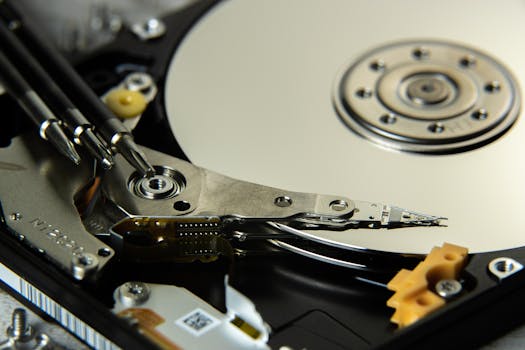
When your Mac’s hard drive is damaged, it can feel like your most important files are suddenly held hostage by a piece of failing hardware. Whether it’s years of family photos, crucial business documents, or creative projects, the thought of losing irreplaceable data is stressful for anyone. Fortunately, there are proven methods to recover files from a damaged hard drive on a Mac. From understanding early warning signs to evaluating professional data recovery options, this guide covers the essential strategies and considerations to maximize your chances of a successful recovery.
Recognizing the Signs of a Damaged Hard Drive on Mac
Before jumping into recovery techniques, it’s important to spot the symptoms of a failing or damaged hard drive. Early detection can be the difference between partial and total data loss.
Common warning signs include: - The computer is unusually slow to boot or access files. - Files or folders suddenly disappear or become corrupted. - Unusual clicking or grinding noises from the hard drive. - macOS displays errors like “The disk you inserted was not readable by this computer.” - Disk Utility reports SMART errors or is unable to verify/repair the drive.According to a 2023 Backblaze report, about 1.4% of hard drives fail in their first year, and the failure rate jumps to 11.8% after the fourth year. That means drives over 4 years old are at much higher risk, so taking action at the first sign of trouble is crucial.
.png)
If you notice these symptoms, stop using the drive immediately. Continued use can worsen physical damage and reduce the chance of file recovery.
Initial Steps: Safeguarding Your Data Before Recovery
Once you suspect a damaged hard drive, it’s vital to avoid actions that could make the situation worse. Here’s what you should do:
1. $1: Any attempt to save new files or install software on the affected drive can overwrite lost files, making recovery more difficult or impossible. 2. $1: If it’s an external drive or if you can safely remove it, disconnect the drive from your Mac to prevent accidental writing. 3. $1: Make note of any error messages, noises, or behaviors. This information can help both DIY recovery and professional services. 4. $1: Before attempting any recovery, check if you have a recent Time Machine backup or another backup solution. If so, restore from there—it’s the safest way to recover files.Taking these precautions sets the stage for the most effective recovery, whether you proceed yourself or consult professionals.
Proven DIY Methods to Recover Files from a Damaged Mac Hard Drive
If your Mac’s hard drive is only logically damaged (e.g., corrupted file system, accidental deletion), there are several proven DIY methods you can try at home.
1. $1 - Open Disk Utility (Applications > Utilities). - Select the problematic drive and click “First Aid.” - Disk Utility will attempt to repair minor issues and restore file access. - Note: This works for file system errors, not physical damage. 2. $1 - Connect your Mac to another Mac using a Thunderbolt or FireWire cable. - Restart your Mac and hold down the T key. - The damaged drive should appear as an external drive on the healthy Mac, allowing you to copy files if the drive mounts. 3. $1 - There are several reputable tools designed for Macs, such as Disk Drill, Stellar Data Recovery, and EaseUS Data Recovery Wizard. - These tools can scan for deleted or lost files and recover them without needing deep technical knowledge. - Always install recovery software on a different drive than the one you’re trying to recover from. - Example: Disk Drill claims a recovery success rate of over 90% for non-physically damaged drives. 4. $1 - The ‘dd’ command in Terminal can create a disk image of the failing drive, which you can then attempt to recover files from. - This method is risky and should only be attempted if you’re comfortable with command-line tools.For drives with physical damage (e.g., clicking noises, drive not spinning up), DIY recovery is risky and often unsuccessful. In those cases, professional help is advised.
Professional Data Recovery: When and Why to Seek Expert Help
If your drive has suffered physical damage, or if DIY methods fail, professional data recovery services offer the best chance of retrieving your files. Here’s what you need to know:
- $1: Professional labs use dust-free clean rooms to safely open and repair hard drives, replacing damaged components if necessary. - $1: Experts can recover data from drives with damaged platters, failed read/write heads, or electronic failures. - $1: Leading data recovery services report success rates between 75% and 95% for hard drives, depending on the severity of the damage.Data recovery can be expensive, ranging from $300 to $2,000 or more, depending on the complexity and urgency. However, for irreplaceable files, it’s often worth the investment.
To choose a reputable provider: - Look for companies with ISO-certified clean rooms. - Check reviews and success rates. - Ask about “no data, no fee” policies.Comparing DIY Software vs. Professional Data Recovery
To help you decide which recovery method suits your situation, here’s a comparison of DIY software and professional recovery services:
| Aspect | DIY Software | Professional Recovery |
|---|---|---|
| Best For | Logical damage, accidental deletion, minor corruption | Physical damage, severe corruption, hardware failure |
| Average Cost | $50 - $150 | $300 - $2,000+ |
| Success Rate | Up to 90% (logical issues) | 75% - 95% (all issues) |
| Technical Skill Needed | Basic to intermediate | None (handled by experts) |
| Time Required | 1-6 hours | 1-7 days (varies) |
| Risk of Further Damage | Possible if mishandled | Minimal (professional environment) |
Preventing Future Data Loss on Your Mac
Once you’ve recovered your files, taking proactive steps to prevent future data loss is essential. The majority of Mac users (over 60%, according to a 2022 Macworld survey) don’t maintain regular backups, putting their data at risk.
Here are proven strategies: - $1: Apple’s built-in backup tool can automatically back up your entire system to an external drive. - $1: Services like iCloud, Dropbox, or Google Drive can keep important files synced and accessible. - $1: Tools like DriveDx can monitor SMART status and alert you to impending failures. - $1: Consider replacing hard drives every 4-5 years, especially if they show signs of wear.By creating a layered backup strategy, you’ll minimize the risk of future data disasters.
Final Thoughts on Recovering Files from a Damaged Mac Hard Drive
Recovering files from a damaged hard drive on a Mac can be stressful, but understanding your options increases your chances of a successful outcome. Recognizing early warning signs, acting quickly, and choosing the right recovery method—whether DIY or professional—are critical steps. Remember, prevention is always better than cure. Regular backups and proactive drive monitoring can save you from future headaches and protect your valuable data for years to come.







