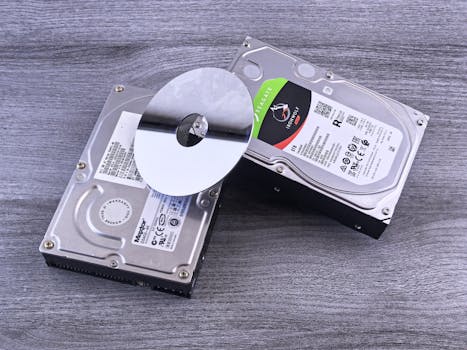
Data loss on a Mac can be a frustrating experience, whether it's due to accidental deletion, hardware failure, or software corruption. Fortunately, the process of Mac data recovery can help restore lost files and ensure that your data is not permanently lost. This article will guide you through the steps involved in recovering data on a Mac, providing a clear understanding of how the process works and what you can do to increase the chances of successful recovery.
Step 1: Assess the Situation
Before attempting any recovery actions, it's important to assess the nature of the data loss. Determine whether the data was lost due to accidental deletion, a malfunctioning hard drive, a virus attack, or software corruption. Understanding the cause of the data loss will help you choose the most effective recovery method.
.png)
Step 2: Stop Using the Affected Device
As soon as you realize that data has been lost, stop using the affected device immediately. Continuing to use the device can lead to new data being written over the lost files, which can decrease the chances of successful recovery.
Step 3: Locate a Backup
If you have been regularly backing up your Mac, you may be able to restore your lost data from a backup. Check Time Machine or any other backup solutions you have been using. Restoring from a backup is the safest and easiest way to recover lost data.
Step 4: Use Data Recovery Software
If a backup is not available, the next step is to consider using data recovery software. There are several reliable data recovery tools available that are designed specifically for Macs. These tools can scan your hard drive for recoverable data and allow you to restore it. Some popular options include Disk Drill, Stellar Data Recovery, and EaseUS Data Recovery Wizard.
Step 5: Install and Run the Recovery Software
Download and install the data recovery software of your choice. It is important to install the software on a drive other than the one where the data was lost to avoid overwriting files. Once installed, launch the software and follow the on-screen instructions to scan your hard drive for recoverable data.
Step 6: Scan and Preview Recoverable Files
Most data recovery software will allow you to perform a scan of your hard drive. This scan can take some time, depending on the size of the drive and the extent of the damage. After the scan is complete, you can usually preview the recoverable files. This feature allows you to verify that your lost data can be recovered before you proceed with the actual recovery.
Step 7: Recover and Save Your Data
Once you have identified the files that you want to recover, select them and choose a safe location to save them. It is best to save the recovered files on an external drive or a different internal drive to prevent data overwriting.
Step 8: Consider Professional Help
If the data recovery software does not bring the desired results, or if the hard drive is physically damaged, it might be time to seek professional help. Professional data recovery services have the tools and expertise to handle more complex recovery tasks, especially in cases of severe physical damage.
Conclusion
Understanding the process of Mac data recovery is crucial for anyone who relies on their Mac for important data. By following these steps, you can increase the likelihood of recovering your lost files. Remember, the best defense against data loss is regular backups, so make sure to set up a reliable backup system if you haven't already.
By taking immediate action and using the right tools, you can overcome the challenge of data loss and restore your valuable information. Whether through simple software solutions or professional services, recovering your data is possible with the right approach.