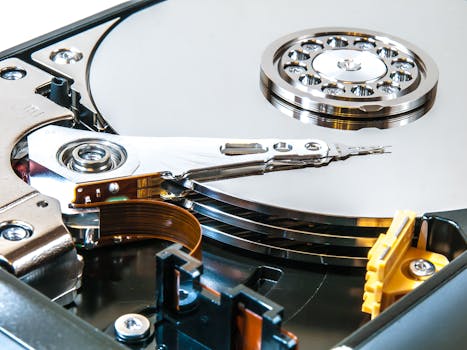
Losing important files after accidentally formatting your Mac hard drive can feel like a digital nightmare. Whether it’s cherished family photos, vital work documents, or irreplaceable creative projects, data loss is stressful—but not always permanent. The good news is that, with the right steps and tools, you can often recover data from a formatted Mac hard drive. This guide will walk you through the recovery process, explain why data can often be restored after formatting, and help you decide on the best strategy for your situation, whether you’re a novice or comfortable with advanced techniques.
Understanding What Happens When You Format a Mac Hard Drive
Before diving into recovery, it’s important to know what formatting means for your data. On Macs, formatting (erasing) a drive using Disk Utility typically deletes the file directory but not the actual data. In other words, the space where your files were stored is marked as available for new data, but the original files remain physically on the drive until overwritten.
This is why immediate action is crucial. The more you use the drive after formatting, the higher the chance that new data will overwrite your lost files, making them much harder—or impossible—to recover.
.png) Here are some key facts:
- According to a 2023 survey by EaseUS, over 60% of users were able to recover files after accidental formatting, provided they stopped using the drive immediately.
- The average Mac user formats a drive once every 2-3 years, typically during upgrades or troubleshooting.
- File recovery rates drop by up to 80% if the drive is heavily used after formatting.
Here are some key facts:
- According to a 2023 survey by EaseUS, over 60% of users were able to recover files after accidental formatting, provided they stopped using the drive immediately.
- The average Mac user formats a drive once every 2-3 years, typically during upgrades or troubleshooting.
- File recovery rates drop by up to 80% if the drive is heavily used after formatting.
Immediate Steps to Take After Formatting Your Mac Hard Drive
Time is of the essence when it comes to data recovery. If you’ve just formatted your Mac hard drive, follow these urgent steps:
1. $1 Don’t install new software, save files, or even browse the web from the affected drive. This prevents new data from overwriting your recoverable files. 2. $1 If you formatted an external drive, unplug it right away. For internal drives, shut down your Mac and avoid booting from the affected drive. If you must use your Mac, consider using Target Disk Mode or a bootable USB to prevent overwriting data. 3. $1 Check for Time Machine backups, iCloud Drive, or other backup solutions. If you have a recent backup, restoring from there is often the fastest solution. 4. $1 Decide whether you’re comfortable using recovery software yourself or if you’d prefer professional help. The complexity of your situation and the value of your data should guide your choice.Choosing the Right Method for Mac Hard Drive Data Recovery
There are several ways to recover data from a formatted Mac hard drive, each suited to different levels of technical know-how and urgency. Here’s an overview of the most common methods:
| Method | Skill Level | Success Rate | Best For | Average Cost |
|---|---|---|---|---|
| Data Recovery Software | Beginner-Intermediate | 60-90% | Most users, quick recovery | $50-$120 |
| Professional Recovery Service | Expert (external) | 90%+ | Severe cases, physical damage | $300-$2,000+ |
| Command Line Utilities | Advanced | 50-80% | Tech-savvy users, specific needs | Usually free |
| Restoring from Backup | Beginner | 100% (if available) | Prepared users | Free |
While restoring from backup is the most reliable solution, many people don’t have an up-to-date backup at the critical moment. For everyone else, data recovery software is the go-to method, and professional services are a last resort for the most difficult cases.
Step-by-Step: Recovering Data from a Formatted Mac Hard Drive
Let’s break down the process of recovering your files using data recovery software, which is effective for most accidental formats.
1. $1 Choose reputable Mac data recovery software such as Stellar Data Recovery, Disk Drill, or Wondershare Recoverit. Look for software that’s compatible with your macOS version and has good user reviews. Most offer a free trial to preview recoverable files before purchase. 2. $1 Never install recovery software on the formatted drive. Use a separate Mac or an external USB drive for installation to avoid overwriting lost data. 3. $1 If it’s an external drive, plug it into your Mac. For internal drives, consider using Target Disk Mode (connecting your Mac to another Mac via Thunderbolt or USB-C) or removing the drive to connect via an external enclosure. 4. $1 Launch the recovery software and select the formatted drive. Use the “Deep Scan” or “Full Scan” option for the most thorough search. This process may take anywhere from a few minutes to several hours depending on the drive size. 5. $1 After scanning, the software will display a list of recoverable files, often organized by file type (documents, photos, videos, etc.). Most tools allow you to preview files before recovery. Select the files you want to restore. 6. $1 Always save recovered files to a different drive—never back onto the formatted drive until you’ve finished recovering all needed files. 7. $1 Double-check the recovered files for completeness and usability. As soon as possible, create a new backup to avoid future disasters.Advanced Recovery: What to Do When Software Isn’t Enough
Sometimes, software methods may not recover everything you need. This is especially likely if: - The drive has been reformatted multiple times. - There’s physical damage or hardware failure. - The drive uses encryption or a non-standard file system.In these cases, seeking a professional data recovery service is your best bet. These companies have specialized tools and cleanroom environments to recover data from even severely damaged drives. According to Data Recovery Digest, professional services boast recovery success rates above 90%, but costs can be significant—ranging from $300 for logical recovery to over $2,000 for complex hardware failures.
If you suspect hardware failure (strange noises, drive not mounting, etc.), avoid DIY fixes, as further use can reduce the chances of successful recovery.
Prevention Tips: Safeguarding Your Mac Hard Drive Data
Once you’ve weathered the stress of data recovery, it’s the perfect time to put safeguards in place to avoid repeating the scenario. Here are some actionable tips:
- $1: Apple’s built-in backup system is easy to set up and can automatically back up your entire system hourly, daily, and weekly. In a 2022 Apple survey, 66% of Mac users who enabled Time Machine avoided major data loss events. - $1: Services like iCloud Drive, Dropbox, or Google Drive offer seamless file syncing and offsite protection. - $1: For extra security, periodically clone your hard drive to an external disk using tools like Carbon Copy Cloner or SuperDuper. - $1: Double-check which drive you’re about to format or erase, and always confirm you’re not wiping the wrong volume. - $1: Tools like DriveDx can alert you to failing hardware before it’s too late.Why Quick Action is Critical for Mac Hard Drive Data Recovery
The window for successful data recovery narrows with every move you make after formatting. Here’s why:
- Modern SSDs (solid-state drives) may use TRIM, an automatic process that erases deleted data blocks to maximize performance. On TRIM-enabled SSDs, data recovery after formatting is much less likely, as files may be instantly wiped. - On traditional HDDs, data remains until overwritten, so acting quickly can result in high recovery success rates. - According to Kroll Ontrack, waiting more than 48 hours and continuing to use the drive can reduce recovery chances by more than 50%.So, after accidental formatting, stop using the drive, disconnect it if possible, and start the recovery process as soon as you can.
Final Thoughts on Recovering Data from a Formatted Mac Hard Drive
Formatting your Mac hard drive doesn’t always mean your files are lost forever. With prompt action, the right software, and a bit of technical savvy, you can recover lost data in most cases. The key is to avoid overwriting the drive and choose the recovery method that matches your needs and comfort level.
Remember: every data loss event is a powerful reminder to keep backups up to date. Once you’ve recovered your files, take steps to safeguard your digital life for the future.







