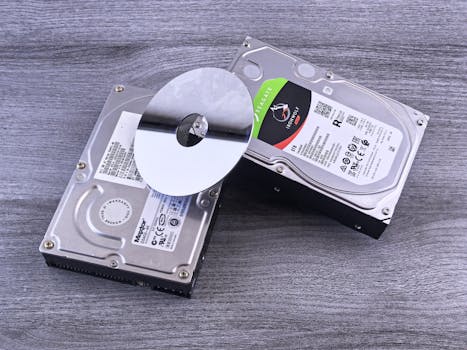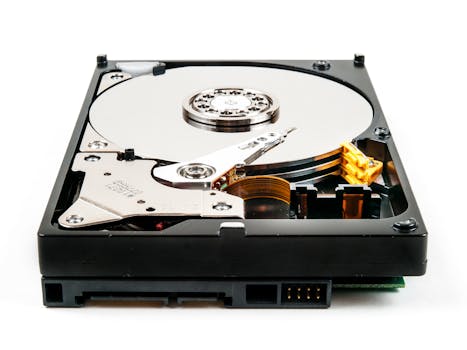
Losing data on a Mac can be a daunting experience, especially if you're dealing with a failing hard drive. Whether it's due to physical damage, accidental deletion, or a software glitch, the loss of important files and documents can be stressful. Fortunately, there are several solutions available for recovering data from a Mac hard drive. This article will explore these options, providing you with the knowledge to choose the best recovery method for your situation.
Understanding the Basics of Mac Hard Drive Recovery
Before diving into recovery solutions, it's important to understand the basics of how data is stored and what happens when it's lost. Mac computers use either HDDs (Hard Disk Drives) or SSDs (Solid State Drives) to store data. HDDs store data on spinning disks, while SSDs store data on flash memory chips. Data loss can occur due to physical damage (like drops or spills), logical errors (such as corrupt files or software issues), or accidental deletion.
.png)
- Using Built-in Recovery Options
MacOS comes with built-in tools that can help in recovering lost data. One of the most powerful tools is Time Machine, Apple’s backup feature. If you have Time Machine set up, you can easily restore your system to a previous state, or recover deleted files and folders. To use Time Machine for recovery:
- Connect the Time Machine backup drive to your Mac.
- Open Time Machine from the System Preferences or by clicking on its icon in the menu bar.
- Navigate through the timeline to find the items you want to restore.
Another built-in option is the Recovery Mode:
- Restart your Mac and hold down Command + R until the Apple logo appears.
- Choose “Disk Utility” to repair your disk or “Restore From Time Machine Backup” to recover data.
- Third-Party Data Recovery Software
If you don’t have a backup, third-party data recovery software can be a lifesaver. These tools scan your hard drive to find recoverable data. Popular options include Disk Drill, Stellar Data Recovery, and EaseUS Data Recovery Wizard. Here’s how to use these tools:
- Download and install the data recovery software.
- Launch the application and select the drive you want to recover data from.
- Scan the drive. This process can take some time, depending on the size of the drive and the extent of the damage.
- Preview the recoverable files and select the ones you want to restore.
- Save the recovered files to a different drive to avoid overwriting data.
- Professional Data Recovery Services
If your hard drive is severely damaged, or if DIY recovery methods fail, professional data recovery services may be necessary. These services are offered by companies that specialize in data recovery, and they have the tools and expertise to recover data from physically damaged drives or complex data loss situations. While this option can be more expensive, it often provides the best chance of recovering your valuable data.
Preventing Future Data Loss
Preventing data loss is just as important as knowing how to recover it. Here are some tips to protect your data:
- Regularly back up your data using Time Machine or another backup solution.
- Keep your Mac updated with the latest software patches and security updates.
- Use antivirus software to protect against malware that can corrupt files.
- Handle your device with care to avoid physical damage.
Conclusion
Data loss on a Mac can be a challenging problem, but with the right tools and knowledge, recovery is often possible. Whether you choose to use built-in tools, third-party software, or professional services, the key is to act quickly and carefully to increase your chances of successful data recovery. Remember, regular backups are the best defense against data loss, so make sure to set up and maintain a reliable backup system.