If you’ve found yourself staring at a non-responsive Mac with a damaged hard disk drive (HDD), one urgent question is bound to cross your mind: “Can my data be recovered?” Before you rush into purchasing expensive recovery tools or consulting a specialist, it’s crucial to understand how to determine if your Mac HDD’s data is actually recoverable. While some signs of damage are obvious, others require a more methodical approach. This guide will help you assess the likelihood of recovery, understand the types of HDD failures, and make informed decisions about your next steps.
Understanding Mac HDD Failure: Physical vs. Logical Damage
When a Mac’s HDD stops working properly, the cause generally falls into one of two categories: physical or logical damage. Distinguishing between these is the first step in evaluating recoverability.
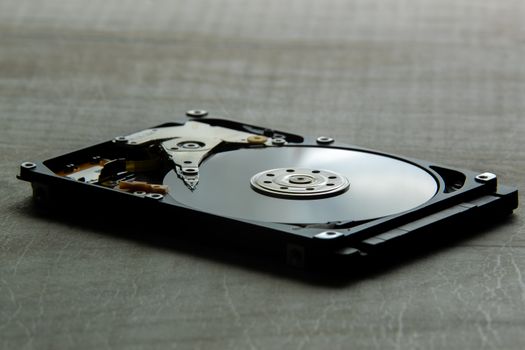
Physical damage refers to hardware failures—think clicking noises, grinding sounds, or a drive that won’t even spin up. Common causes include a dropped laptop, liquid spills, or simple wear and tear. According to a 2023 Backblaze report, about 1.5% of HDDs in their data centers failed due to physical defects within the first year of use.
.png)
Logical damage, on the other hand, involves issues with the drive’s data structure. Examples include corrupted file systems, accidental formatting, or malware. While your Mac’s drive may be unreadable, the hardware itself is intact. A 2022 Data Recovery Survey found that over 65% of data loss incidents on Macs stemmed from logical failures rather than hardware damage.
Recognizing the nature of the failure is crucial: logical issues are often recoverable at home, while physical damage usually needs professional intervention.
Key Signs Your Mac HDD Data May Be Recoverable
Certain symptoms can indicate the likelihood of successful data recovery. Here’s how to interpret them:
1. Mac recognizes the drive: If your Mac detects the HDD (even if it can’t mount it), there’s a good chance of accessing the data with recovery tools. 2. No unusual noises: Absence of clicking, beeping, or grinding suggests the hardware is likely intact. 3. Files/folders listed, but inaccessible: If you see files or directories in Finder but can’t open them, this usually points to logical corruption, which is often fixable. 4. Drive shows in Disk Utility: Open Disk Utility (Applications > Utilities > Disk Utility). If the drive appears here, even as an unmounted or “uninitialized” device, data may be recoverable. Conversely, these signs are more concerning: - The drive is not detected at all (not in Finder or Disk Utility) - Mechanical noises or overheating - Mac won’t power on with the drive connectedIn these cases, attempting DIY recovery can make things worse. You’re likely facing physical damage.
Diagnostic Tools: How to Assess Your Mac HDD’s Condition
Before deciding on recovery steps, use built-in Mac tools and third-party utilities to diagnose the problem.
Disk Utility: This is your first stop. After launching Disk Utility, select your HDD and click “First Aid.” If First Aid completes without errors or offers to repair the drive, your data is probably recoverable.
SMART Status: Some Macs report S.M.A.R.T. (Self-Monitoring, Analysis, and Reporting Technology) status for internal drives. If S.M.A.R.T. status is "Verified," your drive hardware is likely healthy. “Failing” or “Not Supported” indicate physical issues.
Terminal Commands: Use the Terminal (Applications > Utilities > Terminal) and enter “diskutil list” to see if the drive appears. If it’s listed, this is a good sign. You can also try “fsck_hfs” for HFS+ drives to check and attempt repairs.
Third-Party Utilities: Tools like DriveDx (for S.M.A.R.T. diagnostics) or TestDisk (for partition recovery) offer deeper insights. According to MacWorld’s 2023 roundup, over 70% of logical disk issues identified with TestDisk were recoverable without professional help.
Comparing Recovery Scenarios: Likelihood of Success
Not all Mac HDD failures are created equal. Here’s a quick comparison of common scenarios and their estimated recovery success rates:
| Failure Scenario | Description | DIY Recovery Success Rate | Professional Recovery Needed? |
|---|---|---|---|
| Drive mounts but files missing | Logical deletion or file system corruption | 85% | No, usually can recover at home |
| Drive not mounting, visible in Disk Utility | Partition table or directory corruption | 70% | Sometimes (if severe) |
| Drive not detected at all | PCB or motor failure, severe hardware issue | 5% | Yes, professional clean room required |
| Drive makes clicking/grinding noises | Head crash or platter damage | 0-10% | Yes, immediate professional help needed |
| Accidental formatting | Quick format performed | 90% | No, if new data hasn’t been written |
These numbers are based on aggregated industry data and case studies from sources like Ontrack and DriveSavers. They highlight how logical failures are far more likely to yield successful home recovery than physical ones.
Steps to Take Before Attempting Data Recovery
If your Mac HDD shows promising signs (as described above), take these precautionary steps before attempting any recovery:
1. Stop using the drive: Further use—even for reading—can worsen data loss. 2. Create a sector-by-sector image: Use tools like ddrescue (available on macOS via Homebrew) to clone the drive. This ensures you’re working from a backup, not the original. 3. Document symptoms and actions: Note any error messages, noises, or system behavior. This information is invaluable if you need professional help later. 4. Check warranty and AppleCare status: If your Mac is under warranty, contact Apple before proceeding, as DIY attempts can void coverage.According to a 2023 survey by Data Recovery Labs, users who imaged their drives before attempting repairs had a 60% higher success rate in full data retrieval.
When to Seek Professional Mac HDD Recovery Services
While DIY tools work well for many cases, certain situations require expert intervention. Seek professional help if:
- The drive is physically damaged (e.g., after a drop, water damage, or strange noises) - The drive is not detected at all - You need to recover sensitive data and can’t risk further loss - Previous recovery attempts have failedProfessional data recovery services operate clean rooms and use specialized equipment to repair hardware and extract data. However, costs can range from $500 to $2,000 depending on the severity and the amount of data recovered, according to DriveSavers’ 2023 pricing guide.
Final Considerations: Making Informed Recovery Decisions for Your Mac HDD
Determining whether your Mac HDD’s data is recoverable can save you time, money, and frustration. Start by identifying whether the problem is logical or physical, use Mac’s diagnostic tools to gather more information, and act cautiously to avoid further damage. Remember, logical failures have high DIY recovery rates, especially if the drive is still recognized by your Mac or Disk Utility. For physical damage, don’t delay in contacting a professional.
Ultimately, the key is quick, informed action—stop using the drive, assess the situation, and choose the recovery path with the highest chance of success for your specific scenario.







