Selecting the right backup drive for your Mac isn’t just a tech purchase—it’s peace of mind. With the value of your digital life riding on the reliability of your backups, making an informed choice is crucial. But between external hard drives, SSDs, and cloud-based solutions, the market can be bewildering. What type of drive works best with Macs? What features should you prioritize? How do you balance price, speed, and durability? In this comprehensive guide, we’ll break down the essential factors to consider, compare popular drive options, and provide actionable insights so you can confidently choose the best backup drive for your Mac.
Understanding Your Mac Backup Needs
Before shopping for a backup drive, it’s essential to assess your unique needs. The right solution depends on several factors:
- $1 How much data will you back up? A typical Mac user accumulates 200-500 GB of photos, videos, and documents over a few years, but content creators or professionals may need terabytes of space. - $1 Will you run continuous backups, or only occasional ones? Time Machine, Apple’s built-in backup tool, works best with drives that stay connected. - $1 Do you need a stationary desktop drive, or a portable one to carry between locations? - $1 Large files, like 4K videos, benefit from faster drives—especially SSDs with high-speed interfaces. - $1 Backup drives range from $60 to over $500, depending on capacity and speed.Understanding these needs narrows your choices and ensures you don’t over- or under-invest in backup hardware.
.png)
HDD vs. SSD: Which Backup Drive Is Right for Your Mac?
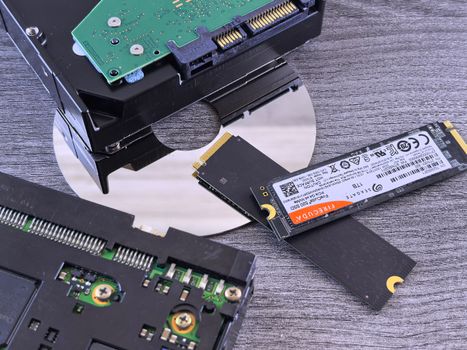
The choice between a traditional hard disk drive (HDD) and a solid-state drive (SSD) is pivotal. Here’s how they stack up:
| Feature | HDD | SSD |
|---|---|---|
| Speed (Read/Write) | 80–160 MB/s | 500–3,500 MB/s |
| Typical Capacity | 1–10 TB | 250 GB–4 TB |
| Durability | Vulnerable to shocks | Highly shock-resistant |
| Cost per TB (2024) | $30–$50 | $80–$120 |
| Portability | Bulkier | Light and compact |
HDDs are best for users who prioritize storage size and cost, making them excellent for long-term, infrequent backups. SSDs, on the other hand, shine in speed and portability. If you’re backing up frequently or need to recover files quickly (for example, video editors), an SSD is worth the investment.
Compatibility and Mac-Specific Features to Look For
Not all backup drives are equally Mac-friendly. Compatibility is key:
- $1 Most drives come formatted as NTFS (Windows) or exFAT (cross-platform). For full Time Machine compatibility, drives should be formatted as APFS or HFS+. Some drives are pre-formatted for Mac, saving setup time. - $1 Look for drives labeled “Mac-ready” or “Time Machine compatible.” This ensures seamless operation without extra drivers. - $1 Modern Macs use Thunderbolt 3/4 (up to 40 Gbps) and USB-C (up to 10 Gbps). Ensure your drive’s cable matches your Mac’s ports. USB-A is only on older Macs. - $1 If your data is sensitive, consider a drive that supports hardware encryption or is compatible with macOS’s FileVault for added security.Apple’s own external drives, like the Apple SSD Module for Mac Pro, are engineered for maximum compatibility, but reputable third-party brands—including LaCie, Western Digital, and Samsung—also offer Mac-optimized models.
Speed, Reliability, and Performance Benchmarks
Backup speed is more than a luxury—it’s essential for frequent or large-scale backups. Here’s what you need to know:
- $1 USB 3.2 SSDs average 400–550 MB/s. Thunderbolt 3/4 SSDs can reach over 2,800 MB/s. For reference, backing up 100 GB on a Thunderbolt SSD can take under 2 minutes. - $1 Even the fastest external HDDs rarely exceed 160 MB/s. A 1 TB backup may take several hours. - $1 SSDs have no moving parts, making them resistant to drops. HDDs are more prone to failure from physical shocks. - $1 According to Backblaze’s 2023 Drive Stats, average annual failure rates for external HDDs hover around 1.4%, while SSDs report failure rates below 0.5%. While both are reliable, SSDs edge out for mission-critical data.For users who back up daily or need to restore massive datasets in a hurry, SSDs are the clear winner in speed and reliability, albeit at a higher price point.
Capacity: How Much Space Do You Really Need?
It’s tempting to buy the biggest drive you can afford, but that’s not always necessary. Here’s a quick guideline:
- $1 1–2 TB is typically enough for documents, photos, and occasional videos. - $1 4–8 TB is ideal for video editors, photographers, and designers with large files. - $1 10 TB+ or RAID arrays may be warranted for multi-user backup or extensive archives.Remember, Time Machine keeps multiple snapshots of your system. For best results, choose a drive at least twice the size of your Mac’s internal storage. For example, if your MacBook has a 512 GB SSD, aim for a 1–2 TB backup drive.
Portability vs. Stationary: Matching Your Backup Drive to Your Lifestyle
Your routine should influence your backup drive choice:
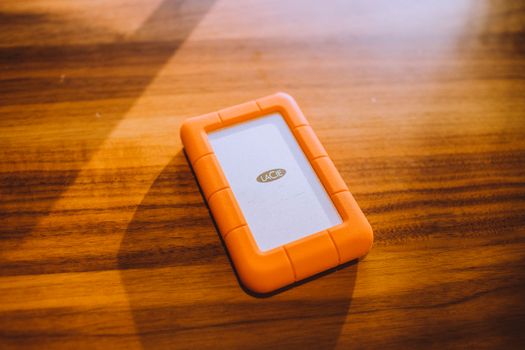
- $1 If you travel, work in multiple locations, or want a backup you can store offsite, prioritize a compact, lightweight SSD. The Samsung T7 SSD, weighing just 58 grams, is a popular choice. - $1 For a stationary office setup, desktop HDDs offer more storage for less cost. The Western Digital My Book and LaCie d2 Professional are reliable options, often with built-in power supplies and larger capacities. - $1 If you’re on the go and need extra protection, look for drives with rugged casings, like the LaCie Rugged series, which can withstand drops of up to 1.2 meters and are water/dust resistant (IP54 rating).Ask yourself: Will I ever need to recover my backup away from home? If so, portability is worth the premium.
Comparing Popular Backup Drive Models for Mac (2024 Edition)
To make your decision easier, here’s a comparison of leading backup drives for Mac users in 2024:
| Model | Type | Capacity Options | Speed (MB/s) | Mac Compatibility | Approx. Price (1TB) |
|---|---|---|---|---|---|
| Samsung T7 Portable SSD | SSD | 500GB–4TB | 1,050 | USB-C, Time Machine | $80 |
| LaCie Rugged USB-C | HDD/SSD | 1TB–5TB (HDD), 500GB–2TB (SSD) | 130 (HDD), 950 (SSD) | USB-C, Mac-formatted | $70 (HDD), $150 (SSD) |
| WD My Passport for Mac | HDD | 1TB–5TB | 120 | USB-C, Mac-formatted | $65 |
| SanDisk Extreme Portable SSD | SSD | 500GB–4TB | 1,050 | USB-C, Time Machine | $90 |
| G-Technology G-DRIVE | HDD/SSD | 2TB–14TB (HDD), 500GB–2TB (SSD) | 250 (HDD), 1,000 (SSD) | USB-C/Thunderbolt, Mac-formatted | $100 (HDD) |
These drives are all popular with Mac users and offer a range of capacities and features. Your best choice depends on your priorities: speed, ruggedness, or sheer storage.
Final Thoughts: Making Your Backup Drive Decision
Choosing the best backup drive for your Mac isn’t a one-size-fits-all decision. By considering your data volume, backup frequency, budget, and portability needs, you’ll narrow your options. SSDs offer superior speed and durability for frequent backups or mobile users, while HDDs provide affordable, high-capacity storage for archival backups. Ensure the drive is Mac-compatible (preferably pre-formatted for Mac), matches your connection ports, and consider extra features like encryption or rugged casings if needed.
Ultimately, the best backup drive is the one you’ll actually use. A backup is only as good as its last run, so pick a reliable, user-friendly drive that fits seamlessly into your workflow—and sleep easy knowing your Mac’s data is safe.