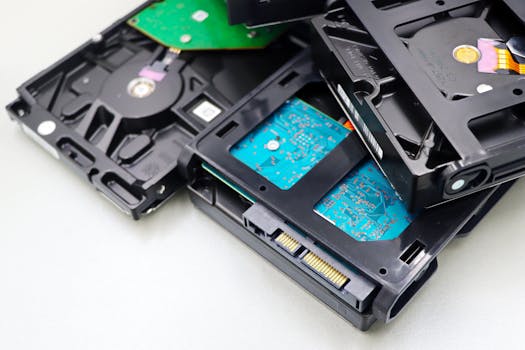
Losing access to critical documents, cherished photos, or essential work files on an external drive can be a nightmare for any Mac user. Whether it’s due to accidental deletion, file corruption, hardware failure, or improper ejection, data loss from external drives is alarmingly common. According to a 2023 data recovery industry report, nearly 30% of all Mac data recovery requests involve external drives, highlighting their vulnerability. The good news? With the right approach, there’s a strong chance you can recover your lost data—even if your Mac can no longer see or mount the affected drive.
This comprehensive guide demystifies the process of recovering data from an external drive on a Mac. From initial troubleshooting to advanced recovery solutions, every step is covered. Whether you’re a casual Mac user or a professional seeking critical files, follow along to maximize your recovery chances and minimize further risk.
Understanding Why Data Loss Happens on External Drives
Before jumping into recovery steps, it’s crucial to understand what can go wrong with external drives on a Mac. Knowing the cause of data loss helps you choose the right recovery strategy and prevents future mishaps.
.png) 1. Accidental Deletion: The most common reason is simply deleting files or formatting the external drive by mistake. In macOS, deleted files from external drives may not go to the Trash, making recovery more complex.
2. File System Corruption: Power outages, abrupt disconnection, or improper ejection can corrupt the drive’s file system, rendering data inaccessible.
3. Hardware Failure: External drives, especially traditional hard drives (HDDs), are susceptible to mechanical wear and impact damage. SSDs, while more durable, can also fail due to firmware issues.
4. Malware or Ransomware: Though less common on Macs than Windows, malware can still target external drives and encrypt or delete files.
5. Compatibility Issues: Drives formatted for Windows (NTFS) may develop read/write issues on Macs, especially after macOS updates.
1. Accidental Deletion: The most common reason is simply deleting files or formatting the external drive by mistake. In macOS, deleted files from external drives may not go to the Trash, making recovery more complex.
2. File System Corruption: Power outages, abrupt disconnection, or improper ejection can corrupt the drive’s file system, rendering data inaccessible.
3. Hardware Failure: External drives, especially traditional hard drives (HDDs), are susceptible to mechanical wear and impact damage. SSDs, while more durable, can also fail due to firmware issues.
4. Malware or Ransomware: Though less common on Macs than Windows, malware can still target external drives and encrypt or delete files.
5. Compatibility Issues: Drives formatted for Windows (NTFS) may develop read/write issues on Macs, especially after macOS updates.
Fact: According to Backblaze’s 2022 reliability report, external HDDs have an average annual failure rate of 1.4%, with older drives at higher risk.
Initial Steps: Safe Handling and Troubleshooting
Before attempting any recovery, take these important precautions:
- $1 Continued use can overwrite lost data, reducing recovery chances. - $1 Swap USB cables and ports. Try the drive on another Mac to rule out port or cable failure. - $1 Clicking or grinding sounds from HDDs indicate severe hardware failure. Do not attempt DIY recovery; seek professional help. - $1 Open Disk Utility (Applications > Utilities > Disk Utility) to see if your Mac recognizes the drive. If visible but unmountable, note the file system and any error messages.If your drive is recognized but files are missing, recovery is more straightforward. If the drive isn’t detected at all, options narrow, but all hope isn’t lost.
Step-by-Step Data Recovery from an External Drive on Mac
Let’s break down the recovery process into actionable steps:
$1
If the drive appears in Disk Utility but is “grayed out” or unmountable, try First Aid:
- Open Disk Utility - Select the external drive in the sidebar - Click “First Aid” and allow macOS to scan and repair file system issuesFirst Aid can resolve minor file system errors and restore access to files. According to Apple’s support statistics, First Aid successfully resolves about 12% of external drive issues.
$1
For users comfortable with command line:
- Open Terminal (Applications > Utilities > Terminal) - Type: diskutil list (to identify your drive) - Use: diskutil repairVolume /dev/diskX (replace X with your drive number)Terminal commands can sometimes repair drives that Disk Utility can’t, but use with caution—incorrect commands may worsen the problem.
$1
If files remain missing or the drive is unmountable, specialized data recovery software is your best bet. These tools scan drives at a low level to recover deleted or inaccessible files:
Popular Mac-compatible options include:
- Disk Drill - Stellar Data Recovery - EaseUS Data Recovery Wizard for MacHere’s a side-by-side comparison:
| Software | Free Recovery Limit | File System Support | Success Rate (User Reports) | macOS Compatibility |
|---|---|---|---|---|
| Disk Drill | Up to 500MB | HFS+, APFS, FAT32, NTFS, exFAT | ~85% | macOS 10.13+ |
| Stellar Data Recovery | Up to 1GB | APFS, HFS+, NTFS, exFAT, FAT32 | ~80% | macOS 10.8+ |
| EaseUS Data Recovery | Up to 2GB | HFS+, APFS, FAT32, NTFS, exFAT | ~83% | macOS 10.9+ |
Most recovery programs follow the same process:
- Connect the external drive to your Mac - Launch the recovery software and select your drive - Perform a “Quick Scan” for recently deleted files, then a “Deep Scan” for more thorough recovery - Preview recoverable files and select those you want to restore - Save recovered files to a different location (never to the same external drive)$1
If software methods fail—especially in cases of physical damage or severe corruption—professional data recovery labs are the last resort. These services use clean-room environments and advanced tools to recover data even from non-functional drives.
Key facts:
- Average recovery cost: $300–$1,500, depending on damage severity and drive type - Success rate: 65–90% for logical failures; 50–70% for mechanical failures - Turnaround time: 2–7 daysAlways choose a reputable provider with clear pricing and a “no data, no fee” policy.
Special Cases: Recovering Data from Time Machine and Encrypted Drives
Some external drives are used specifically for Time Machine backups or are encrypted for security. Here’s how recovery differs in these scenarios:
$1
- Time Machine stores incremental backups in a special format. To recover: - Open Time Machine from the menu bar - Browse backup snapshots - Restore desired files or foldersIf the Time Machine drive is corrupted, use recovery software that supports the “.backupdb” format.
$1
- You must enter the correct password or recovery key before accessing or recovering data - Some data recovery tools support encrypted drives, but recovery is only possible with proper authentication - For lost passwords, decryption is virtually impossible due to macOS’s strong encryption standardsFact: Apple’s FileVault encryption uses XTS-AES-128 encryption with a 256-bit key, making brute-force attacks infeasible.
Best Practices to Prevent Future Data Loss on Mac External Drives
Recovering lost data can be stressful, time-consuming, and expensive. Take these proactive steps to minimize the risk of future data loss:
1. $1 Always use “Eject” before unplugging to prevent file system corruption. 2. $1 Use Time Machine or cloud backup services like iCloud or Backblaze. 3. $1 Apps like DriveDx or SMART Utility can alert you to early signs of hardware failure. 4. $1 Compatibility issues can lead to read/write errors—keep your system updated. 5. $1 Use padded cases and avoid moving drives while in use. 6. $1 Even Macs need periodic malware scans, especially if sharing drives with Windows machines.Fact: According to a 2022 Cloudwards.net survey, 41% of users who backed up their external drives monthly experienced zero data loss incidents.
Final Thoughts on Recovering Data from External Drives on Mac
Losing files from an external drive may feel overwhelming, but the right steps can make recovery possible in most scenarios. Start with safe troubleshooting, escalate to trusted recovery software, and consult professionals for complicated cases. Remember, the best defense is prevention—regular backups, careful handling, and proactive health checks will safeguard your data against future mishaps. If you follow the guide above, you’ll maximize your chances of successful data recovery and keep your Mac’s external drives running safely for years to come.







