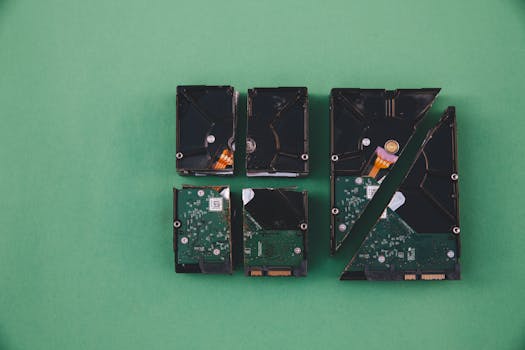
Recovering Data from a Damaged Mac HDD Using Terminal: Step-by-Step Guide
If your Mac's hard drive is damaged and data seems inaccessible, don’t panic—there are powerful tools at your fingertips. While most users rely on graphical recovery apps, the built-in Terminal app offers expert-level control for those willing to learn. Using Terminal, you can attempt to access, copy, and even repair files on a failing Mac HDD, often succeeding where other tools fail. In this comprehensive guide, you'll learn how to recover data from a damaged Mac hard drive using Terminal, including key commands, practical workflows, and important safety tips.
Understanding Mac HDD Failures and When to Use Terminal
Mac hard drives may fail due to physical damage (such as impact or water), logical corruption (like file system errors), or gradual wear and tear. According to a 2022 Backblaze report, hard drives have an annual failure rate of about 1.45%—meaning thousands of Mac users face this problem every year.
Terminal is a command-line interface that gives you direct access to Mac’s UNIX underpinnings. This can be invaluable if the Finder cannot recognize your hard drive or if the drive mounts inconsistently. However, Terminal does not fix hardware issues; it's best suited for logical or file system problems, directory corruption, or when you need to copy data from a partially readable drive.
.png) When should you use Terminal for data recovery?
- The drive appears in Disk Utility but won’t mount or open in Finder
- The drive mounts but shows errors or missing files
- You want to create a byte-for-byte backup or image of the failing drive
- Specialized recovery software is unavailable or unaffordable
When should you use Terminal for data recovery?
- The drive appears in Disk Utility but won’t mount or open in Finder
- The drive mounts but shows errors or missing files
- You want to create a byte-for-byte backup or image of the failing drive
- Specialized recovery software is unavailable or unaffordable
Caution: If the drive is making unusual noises (clicking, grinding), power off immediately and seek professional help. Hardware damage can worsen quickly.
Preparing for Data Recovery: Essential Steps Before Using Terminal
Using Terminal for data recovery requires caution and preparation to avoid further data loss. Here’s what to do before starting:
1. $1: Writing new data can overwrite lost files or worsen corruption. 2. $1: If the drive is partially accessible, use Finder or Disk Utility to copy out any critical files. 3. $1: You’ll need an external drive or large USB stick to save recovered files. 4. $1: If your Mac won’t start normally, press Command + R at startup for Recovery Mode, or Command + S for Single-User Mode. Both provide Terminal access. 5. $1: In Terminal, type `diskutil list` to see all connected drives and note the identifier (like /dev/disk2s1) for the damaged HDD.A proper setup minimizes risks and ensures you have a safe destination for recovered data.
Core Terminal Commands for Mac Data Recovery
Terminal offers a suite of commands that can help recover data from a damaged HDD. Here are the most important:
$1 This command manages disks, partitions, and volumes. - List all disks: `diskutil list` - Attempt to mount a drive: `diskutil mount /dev/disk2s1` - Verify and repair a disk: `diskutil verifyDisk /dev/disk2` and `diskutil repairDisk /dev/disk2` - Check and repair a volume: `diskutil verifyVolume /dev/disk2s1` and `diskutil repairVolume /dev/disk2s1` $1 Powerful for repairing disk structure when Disk Utility fails. - Run on unmounted drives: `sudo fsck_hfs -fy /dev/disk2s1` (for HFS+ disks) - To repair APFS volumes: `sudo fsck_apfs -n /dev/disk2s1` Note: Always ensure the volume is unmounted before using fsck. $1 These commands copy files and folders, even from damaged or partially readable disks: - Copy files: `cp -R /Volumes/DamagedDrive/Users/YourName/Documents /Volumes/BackupDrive/` - Use rsync for robust copying: `rsync -av --progress /Volumes/DamagedDrive/ /Volumes/BackupDrive/` - Use ditto for entire directories: `ditto /Volumes/DamagedDrive/ /Volumes/BackupDrive/` $1 Creates a bit-for-bit image of your entire drive, crucial if the drive is failing rapidly: `sudo dd if=/dev/disk2 of=/Volumes/BackupDrive/disk2_backup.img bs=4m conv=noerror,sync` - if= (input file): source disk - of= (output file): destination image file - bs=: block size (4m = 4 megabytes) - conv=noerror,sync: continue past errors and pad as needed $1 Navigate directories to locate files: - List files: `ls /Volumes/DamagedDrive/` - Change directory: `cd /Volumes/DamagedDrive/Users/YourName/Documents`With these commands, you can diagnose, repair, and extract files from most logical hard drive failures.
Step-by-Step Workflow: Recovering Data Using Terminal
Here’s a practical workflow using Terminal to recover data from a damaged Mac HDD:
$1 Open Terminal and run: `diskutil list` Find your damaged HDD (e.g., /dev/disk2s1, named “DamagedDrive”).
$1 If it’s not mounted, try: `diskutil mount /dev/disk2s1` If successful, move to file copying. If not, proceed to verification.
$1 Run: `diskutil verifyVolume /dev/disk2s1` If errors are found, try: `diskutil repairVolume /dev/disk2s1` For deeper issues, unmount the volume: `diskutil unmount /dev/disk2s1` Then use fsck: `sudo fsck_hfs -fy /dev/disk2s1` Or for APFS: `sudo fsck_apfs -n /dev/disk2s1`
$1 If the drive mounts (even temporarily), use: `rsync -av --progress /Volumes/DamagedDrive/ /Volumes/BackupDrive/` This will copy all files, preserving structure and skipping unreadable files.
$1 If the drive is very unstable, clone it to an image: `sudo dd if=/dev/disk2 of=/Volumes/BackupDrive/disk2_backup.img bs=4m conv=noerror,sync` This lets you attempt data recovery from the image, not the failing hardware.
$1 Mount the image: `hdiutil attach /Volumes/BackupDrive/disk2_backup.img` Then use cp, rsync, or ditto to copy files out.
$1: - Always copy data to a separate drive, not back onto the damaged one. - Work methodically; rushing can lead to mistakes. - If the drive disconnects or stalls, retry mounting or copying only after a brief rest period.Comparison: Terminal vs. Mac Data Recovery Software
How does Terminal stack up against commercial Mac data recovery tools? Here’s a quick comparison:
| Feature | Terminal (Manual) | Commercial Software |
|---|---|---|
| Cost | Free (built-in) | $49–$99 per license |
| Technical Skill Required | High (command-line usage) | Low (graphical interface) |
| Flexibility | Very high (custom commands) | Moderate (pre-set options) |
| File System Support | HFS+, APFS, FAT, others | Most file systems, often broader |
| Chance of Recovery | Good for logical errors | Excellent for many data loss cases |
| Repair Physical Damage | No | No (professional help needed) |
Terminal is a powerful, free tool for tech-savvy users, while commercial software is easier but can be costly.
Safety Tips and Common Pitfalls in Terminal-Based Recovery
While Terminal offers powerful recovery capabilities, it’s easy to make mistakes that can worsen data loss. Here are crucial safety tips:
- $1: All recovery actions (copying, imaging) should write only to a separate, healthy drive. - $1: Accidentally running commands on the wrong disk (e.g., using dd or fsck) can erase or corrupt data. - $1: Even if prompted, never reformat until all recovery attempts are complete. - $1: Recovery, especially with dd or rsync, can take hours for large drives or severely damaged disks. - $1: Overheating or power loss during recovery can cause further data loss.A 2023 survey by Ontrack found that 17% of DIY recovery attempts failed due to users accidentally overwriting or erasing data—so caution is essential.
Final Thoughts on Using Terminal for Mac HDD Data Recovery
Recovering data from a damaged Mac hard drive using Terminal is not for everyone, but it’s a lifeline for those comfortable with command-line tools. Terminal provides granular control, cost savings, and the ability to script or automate complex recovery efforts. However, it requires careful preparation, technical know-how, and a steady hand.
If you succeed, you’ll recover not just your files but also valuable skills. If you’re ever unsure, or if the drive shows signs of hardware failure, it’s best to consult a professional data recovery service to avoid irreversible loss.







