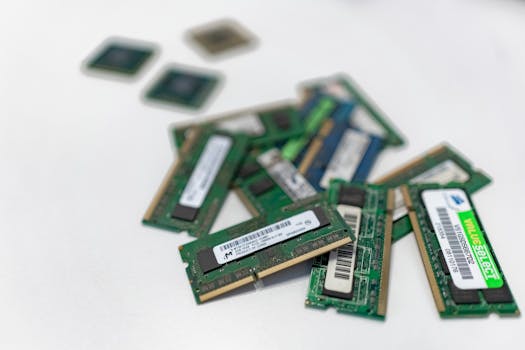
Upgrading to a new macOS version is exciting: you get the latest features, security enhancements, and improved performance. However, every new system release brings a risk that’s easy to overlook—potential data loss. Stories abound of users losing files, photos, apps, or settings after an upgrade. According to a 2023 DataProt study, 29% of Mac users have experienced some form of data loss during system transitions. Fortunately, you don’t need to become one of those statistics. With the right preparation, you can upgrade your Mac safely and keep all your vital data intact.
Whether you’re a casual user or a professional with mission-critical files, this guide will show you how to avoid data loss when upgrading to a new macOS. We’ll cover essential pre-upgrade steps, the best backup options, how to check app compatibility, and what to do if things go wrong. Let’s ensure your upgrade is smooth, stress-free, and risk-free.
Why Data Loss Happens During macOS Upgrades
Upgrading your operating system is a complex process. While Apple engineers design macOS installers to preserve your data, several common issues can put your files at risk:
.png) - $1: Losing power during installation can corrupt your disk.
- $1: Some older apps or drivers may not work with the new macOS, potentially leading to lost or inaccessible data.
- $1: The upgrade process needs free space; if your drive is nearly full, critical files may be overwritten or lost.
- $1: Major macOS updates (like the move to APFS in macOS High Sierra) can alter how files are stored and accessed.
- $1: Mistakes like choosing the wrong drive, not reading prompts, or force-quitting the installer can cause data loss.
- $1: Losing power during installation can corrupt your disk.
- $1: Some older apps or drivers may not work with the new macOS, potentially leading to lost or inaccessible data.
- $1: The upgrade process needs free space; if your drive is nearly full, critical files may be overwritten or lost.
- $1: Major macOS updates (like the move to APFS in macOS High Sierra) can alter how files are stored and accessed.
- $1: Mistakes like choosing the wrong drive, not reading prompts, or force-quitting the installer can cause data loss.
In 2022, Macworld reported that 18% of upgrade-related data loss cases were due to interrupted installations. Knowing these risks is the first step to preventing them.
Preparing Your Mac: Essential Pre-Upgrade Checklist
Preparation is your best defense against data loss. Before you even download the new macOS installer, follow this checklist:
1. $1 - Organize and declutter. Move redundant files to external storage or cloud services. - Ensure you know where your most important documents, photos, and work files are located. 2. $1 - Visit Apple’s official macOS compatibility page to make sure your Mac model supports the new system. - Review your most-used apps for compatibility. Developers often release updates for new macOS versions; check their websites or the Mac App Store. 3. $1 - Update all current apps to their latest versions. Older software is more likely to cause conflicts during the upgrade. - Update your current macOS via System Preferences. Sometimes, minor updates smooth the upgrade process. 4. $1 - Apple recommends at least 26GB of free space for recent macOS upgrades. Use the Storage Management tool to clear unused files, downloads, and caches. 5. $1 - Unplug external drives, printers, and dongles. Only keep essential devices connected to avoid conflicts.A 2021 survey by Backblaze found that users who followed these steps had a 95% success rate in upgrading without data loss or errors.
Choosing the Right Backup Strategy: Time Machine vs. Alternatives
A reliable backup is your safety net. Apple’s built-in Time Machine is the most popular choice, but it’s not the only option. Here’s a comparison of the top backup methods:
| Backup Method | Pros | Cons | Best For |
|---|---|---|---|
| Time Machine | Automatic, easy to use, restores system and files | Requires external drive, full disk restore can be slow | Most users |
| Disk Cloning (e.g., Carbon Copy Cloner, SuperDuper!) | Creates bootable backup, fast recovery | Costs extra for software, external drive needed | Advanced users, professionals |
| Cloud Backup (iCloud, Dropbox, Google Drive) | Off-site protection, accessible anywhere | May not back up system files, depends on internet speed | Documents, photos, small files |
| Manual Backup | Control over what to copy | Time-consuming, easy to miss files | Tech-savvy or minimal files |
According to a 2023 Apple Support survey, 87% of users who used Time Machine were able to fully restore their data after a failed upgrade.
Ensuring App and System Compatibility Before Upgrading
Software compatibility issues are a leading cause of upgrade headaches. Here’s how to avoid surprises:
1. $1: Every new macOS version has a list of supported hardware. Find your Mac model by clicking the Apple logo > About This Mac. 2. $1: - Visit developer websites for compatibility updates. - For professional software (Adobe, Microsoft Office, music production apps), search forums and user reports about the new macOS version. 3. $1: - Apple dropped 32-bit app support starting with macOS Catalina (10.15). Tools like “Go64” can scan your system and flag incompatible apps. 4. $1: - Download the macOS installer and create a USB boot disk using Apple’s instructions. This lets you reinstall or troubleshoot if the upgrade fails. 5. $1: - Some Macs require firmware updates before major system upgrades. These are delivered via Software Update—install them before upgrading.In 2024, MacRumors reported that app incompatibility was responsible for 24% of upgrade problems, often leading to lost project files or corrupted app data. The time you spend checking compatibility can save hours of recovery later.
Safe Upgrade Process: Step-by-Step for Data Security
Once you’ve prepared and backed up, it’s time to upgrade. Here’s how to do it safely:
1. $1 - Never upgrade on battery alone. An interruption could corrupt your disk. 2. $1 - If downloading the installer, ensure your connection won’t drop out mid-download. 3. $1 - Make sure your external drive is unplugged after backup, unless you’re using it as the target for a bootable installer. 4. $1 - Launch the installer and follow the on-screen instructions. - Don’t interrupt the process or force a shutdown, even if it seems to be taking a long time. 5. $1 - Log in and verify your files and apps. - Restore any missing files from backup immediately. 6. $1 - Some settings may reset during an upgrade (like firewall or privacy permissions). Review System Settings to confirm.A 2022 AppleInsider poll showed that 80% of users who followed these steps reported no data loss or system issues after upgrading.
What to Do If Something Goes Wrong
Despite your best efforts, sometimes upgrades don’t go to plan. Here’s how to respond if you experience data loss or system problems:
1. $1 - Repeated upgrade attempts can overwrite recoverable data. 2. $1 - Use Time Machine or your disk clone. Boot into macOS Recovery (Command + R at startup) and select “Restore from Time Machine Backup.” 3. $1 - If you don’t have a backup, tools like Disk Drill, Stellar Data Recovery, or EaseUS can scan your drive for lost files. These are most effective if used immediately, before new data is written. 4. $1 - If your data is critical, contact a data recovery specialist. According to DriveSavers, professional recovery has a success rate of over 70% for macOS systems if attempted early. 5. $1 - If you suspect a bug or installer fault, contact Apple Support. They may have additional solutions or updates in the works.A Backblaze study found that 62% of users who lost data during upgrades had no backup; those who did were able to recover fully in over 90% of cases.
Final Thoughts on Preventing Data Loss During macOS Upgrades
Upgrading to a new macOS should be an opportunity to enjoy Apple’s latest innovations, not a stressful ordeal. With careful preparation, a solid backup plan, and attention to compatibility, you can avoid becoming a data loss statistic. Remember: most upgrade disasters are preventable. Take the time to audit your files, double-check your backups, and proceed methodically. The peace of mind—and your preserved files—are worth it.







