Introduction to Maintaining Your Mac's Hard Drive
Maintaining the hard drive of your Mac not only prolongs its life but also enhances its performance, ensuring that you enjoy a seamless user experience. This guide outlines the best practices for optimal Mac hard drive maintenance, suitable for both seasoned users and newcomers to the Apple ecosystem.
- Regular Backups
The cornerstone of good data management is regular backups. Utilize Time Machine, macOS's integrated backup feature, to automatically back up your entire system to an external drive. This safeguards your data against hardware failure and facilitates easy retrieval of older documents.
.png)
- Disk Cleanup
Keep your hard drive free from clutter by regularly removing unnecessary files such as caches, logs, and duplicates. Tools like Finder for basic cleanup and third-party apps like CleanMyMac for more thorough cleaning can help free up space and enhance system performance.
- Utilize Disk Utility
Use macOS's Disk Utility to periodically run First Aid, a tool that checks for and corrects minor disk errors. Regular checks can prevent larger issues from developing, helping maintain your system’s stability and reliability.
- Physical Care
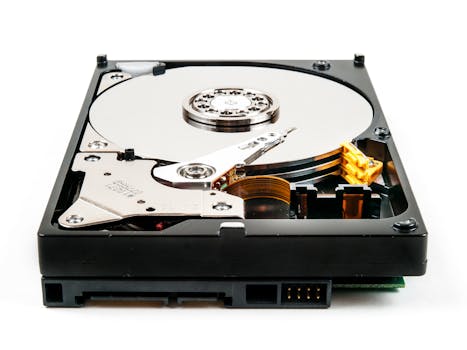
Protect your hard drive from physical damage by avoiding extreme temperatures, moisture, and impacts. For MacBook users, be cautious about moving your device while it is active, particularly if it houses a mechanical hard drive.
- Optimize Storage
Activate macOS's Optimize Storage feature to manage disk space efficiently. This tool automatically offloads old files to iCloud, clears media you've already watched, and cleans up email attachments that you don't need on your local drive.
- System Updates
Keep your operating system up to date. macOS updates often include important security patches, performance enhancements, and bug fixes that help keep your hard drive running smoothly.
- Monitor System Performance
Use Activity Monitor to track system performance. This tool provides insights into disk usage, resource-heavy applications, and overall system health, helping you make informed decisions about managing your hard drive space and app usage.
- Defragmentation: Not Required
Mac systems generally manage fragmentation automatically. The need for manual defragmentation is rare; macOS is designed to minimize and manage fragmentation efficiently. Only consider professional defragmentation if you notice significant slowdowns and your system is notably aged.
- Consider Hard Drive Replacement
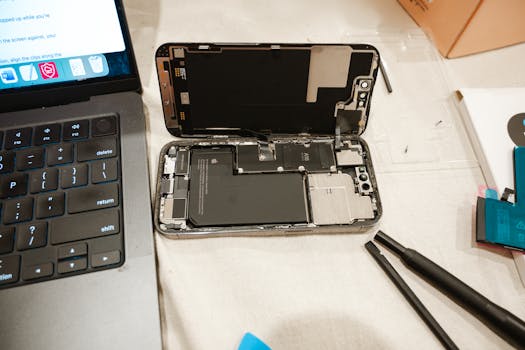
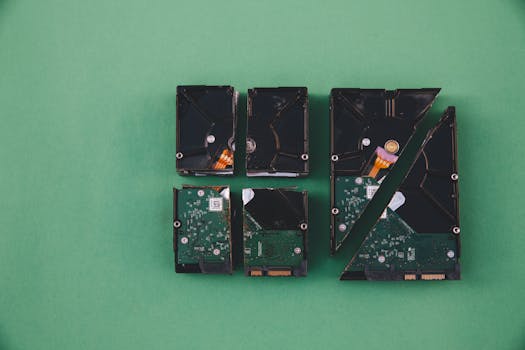
Be mindful of the lifespan of your hard drive. Frequent system crashes or a noticeable slowdown in performance might indicate that it’s time to consider a hard drive upgrade, preferably to an SSD, which offers quicker data access speeds and better durability than traditional hard drives.
Conclusion
By adhering to these best practices, you can significantly enhance the longevity and efficiency of your Mac's hard drive. Regular maintenance not only helps in smooth system operation but also ensures that your data remains safe and accessible. Always remember, a well-maintained device is key to a hassle-free computing experience.