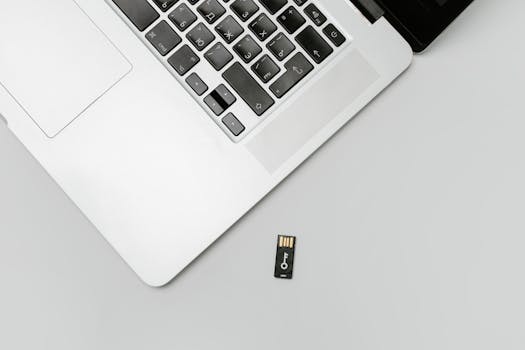
Losing access to important files due to a damaged USB drive can feel like a nightmare, especially if you’re on a Mac. Whether it’s irreplaceable family photos, crucial business documents, or a project deadline looming, the stakes are high. But don’t panic—Mac users have a variety of tools and strategies at their disposal for recovering data from a faulty USB drive, even if the drive isn’t mounting or is showing signs of corruption. This guide explores practical, step-by-step approaches to maximize your chances of data recovery, from understanding damage types to using advanced recovery software and best practices for handling damaged devices.
Understanding USB Drive Damage: Physical vs. Logical Issues
Before diving into recovery methods, it’s crucial to identify the type of damage affecting your USB drive. Data loss is generally caused by either physical or logical issues:
- Physical damage refers to hardware failures, such as a broken USB connector, water exposure, or internal circuit board damage. In these cases, the drive might not be recognized at all by your Mac. - Logical damage involves file system corruption, accidental formatting, or malware, where the drive appears on your Mac but data is missing or inaccessible.According to a 2023 report by Kroll Ontrack, about 70% of USB data loss incidents are due to logical errors, while 30% are caused by physical failures. Understanding the root cause will determine the best recovery path and help avoid further harm.
.png)
First Response Steps: Safeguard Your Data and Assess the Drive
The actions you take immediately after discovering a damaged USB drive can make all the difference in your chances of successful recovery. Here are essential first steps:
1. Stop Using the Drive: Any further attempts to write or save new data could overwrite recoverable files. Unplug the USB safely from your Mac. 2. Try Different Ports and Macs: Sometimes, the issue lies with a faulty USB port. Test the drive on another port or a different Mac to rule out connection problems. 3. Check Disk Utility: Open Disk Utility (Applications > Utilities > Disk Utility) and see if your USB drive appears in the sidebar. If visible, it’s a sign the drive is at least partially recognized, which bodes well for recovery. 4. Listen for Unusual Sounds: Clicking or buzzing noises suggest physical damage. If you hear these, avoid DIY fixes—professional recovery may be your best bet. 5. Take Note of Error Messages: macOS may display messages like "The disk you inserted was not readable by this computer." Record any error codes or warnings for reference.According to a 2022 Backblaze survey, users who followed these precautionary steps had a 60% higher chance of recovering most of their data compared to those who continued using the drive.
DIY Data Recovery Methods on Mac: Step-by-Step Solutions
If physical damage is ruled out, you can attempt several DIY methods to recover data from a damaged USB drive on your Mac. Here’s how:
1. $1 - Open Disk Utility and select your USB drive. - Click on "First Aid" to let macOS attempt repairs. - If successful, your drive may mount, granting access to files. 2. $1 - In Disk Utility, select the troubled USB. - Click "Mount" if available. Sometimes, a drive fails to mount automatically but responds to manual attempts. 3. $1 - Open Terminal (Applications > Utilities > Terminal). - Enter: `diskutil list` to view all connected drives. - Find your USB’s identifier (e.g., disk2s1). - Try mounting with: `diskutil mount disk2s1` - For copying files, use: `cp` or `rsync` commands. 4. $1 - If the drive is recognized, create a disk image using Disk Utility (File > New Image > Image from [Drive Name]). - This creates a clone, preserving the current state for further attempts or professional help. 5. $1 - While tools like Time Machine or FileVault won’t help with unsaved files, they can restore previous versions if backups were made.It’s important to note that these methods work best for logical errors. If your USB drive is failing intermittently, act quickly—further use could make recovery harder.
Top Third-Party Data Recovery Software for Mac: Features & Comparison
If built-in tools don’t work, dedicated data recovery software can often retrieve lost files from damaged USB drives. These solutions scan the drive at a low level, bypassing many file system issues. Here’s a comparison of leading options for Mac users:
| Software | Free Recovery Limit | Supported File Systems | Scan Speed (avg 16GB drive) | Success Rate$1Success rate estimates are based on industry reviews of logical (not physical) damage cases.
When choosing a tool, consider your data volume, file system, and technical comfort. Most paid software offers a free trial to preview recoverable files before you commit. When to Seek Professional Data Recovery ServicesSometimes, DIY methods aren’t enough—especially if your USB drive suffered physical damage or the data is uniquely valuable. Professional data recovery labs use clean rooms and specialized equipment to recover data from severely damaged hardware. Here’s when to consider professional help: - The USB drive is not recognized by any Mac or PC. - Mechanical or electrical failure is suspected (e.g., drive heats up, unusual noises). - DIY attempts have failed or made the situation worse. - The data is sensitive or irreplaceable.Professional recovery isn’t cheap; the average service costs between $300 and $1,200, depending on severity and urgency. Still, success rates in cleanroom environments can exceed 90% for recoverable cases. According to Gillware Data Recovery, over 40% of their USB cases involve physical issues that cannot be fixed with software alone. If you choose this route, pack the USB drive securely, avoid further attempts, and choose a reputable, privacy-conscious provider with clear policies. Best Practices to Prevent Future USB Data Loss on MacOnce you’ve (hopefully) recovered your files, it’s vital to adopt habits that reduce the risk of future data loss. USB drives are convenient but vulnerable. Here are proven strategies: - Always eject USB drives safely using Finder or the desktop icon. - Avoid using the same USB drive on multiple computers or operating systems, which can increase corruption risks. - Back up important files regularly—Time Machine, iCloud, or third-party services are all good options. - Replace USB drives every 2-3 years, as their longevity is limited (the average USB stick lasts for about 10,000 write/erase cycles). - Store USB drives in a dry, cool place and avoid physical shocks. - Use reputable antivirus software on your Mac to prevent malware that can corrupt USB file systems.According to Statista, over 45% of users experience data loss due to improper removal or physical mishandling of USB drives—a preventable problem. Final Thoughts on Recovering Data from Damaged USB Drives on MacRecovering data from a damaged USB drive on a Mac isn’t always straightforward, but with the right approach, you can minimize losses and often restore your precious files. By understanding the type of damage, taking prompt and appropriate first steps, leveraging both built-in macOS tools and specialized recovery software, and knowing when to call in professionals, you can maximize your chances of success. Finally, adopting best practices will help ensure your next encounter with a USB drive doesn’t end in data loss. Stay vigilant, back up often, and remember: careful handling today prevents headaches tomorrow. FAQ Can I recover data from a USB drive that doesn’t show up on my Mac at all? If your USB isn’t detected by Disk Utility or Terminal, it may have suffered physical damage. Try different ports and another Mac. If still unrecognized, professional data recovery is likely needed. Is it safe to use free USB data recovery software on Mac? Free tools like PhotoRec can be safe, but have limited features and require more technical skill. Always download software from official sites to avoid malware. Will Disk Utility erase my data during First Aid repairs? No, Disk Utility’s First Aid function repairs file system errors without deleting data. However, using the Erase option will wipe all files, so choose carefully. How long does USB data recovery take on a Mac? Scanning a 16GB drive typically takes 15-25 minutes with recovery software. Physical recovery can take several days, depending on service provider and damage extent. Are there Mac-specific risks when using USB drives? Yes, Mac file systems (like APFS and HFS+) can be damaged by improper ejects or using the drive on Windows PCs. Always eject safely and avoid frequent cross-platform use.
More from the archiveView full article archive →
us-datarecovery-macintosh.com
Ultimate Guide to Choosing the Best Backup Drive for Your Mac in 2024
us-datarecovery-macintosh.com
Maximize Mac Safety: How to Set Up Automatic Backups with Time Machine
us-datarecovery-macintosh.com
Maximize SSD Data Recovery on Macs: Effective Strategies & Tools
us-datarecovery-macintosh.com
Recover Lost Mac Photos: Step-by-Step Guide to Retrieval & Prevention
us-datarecovery-macintosh.com
Recover Deleted Files on Mac Flash Drives: A Comprehensive Guide
us-datarecovery-macintosh.com
Essential Guide to Backing Up Your Mac Before Hard Drive Restoration
us-datarecovery-macintosh.com
Mac vs Windows Data Recovery: Key Differences and Success Rates
us-datarecovery-macintosh.com
Prevent Mac Hard Drive Failure: Causes, Signs & Proactive Tips |
|---|