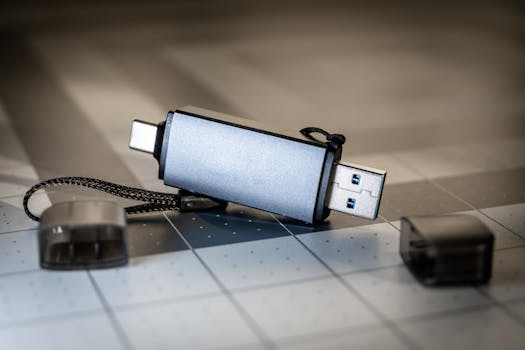
Losing important files from a USB flash drive can be a stressful experience, especially for Mac users who rely on these portable devices for everyday file transfers, backups, and work projects. Whether it’s due to accidental deletion, corruption, or improper ejection, recovering data from a USB flash drive on a Mac requires a specific approach. Acting quickly and carefully can make all the difference between a successful recovery and permanent data loss. In this comprehensive guide, we’ll explore practical tips for retrieving your files, highlight crucial do’s and don’ts, and demystify the recovery process with step-by-step advice tailored to Mac users.
Understanding How Mac Handles USB Flash Drives
Before attempting any data recovery, it helps to understand how macOS interacts with USB flash drives. When a USB drive is plugged into a Mac, the system mounts it as a volume, making its files accessible through Finder. However, macOS also caches data and manages file deletion differently than Windows.
Here are some key facts: - When you delete a file from a USB drive on a Mac, it often bypasses the Trash and is immediately marked as free space, making recovery more urgent. - About 13% of data loss cases on Macs are due to improper ejection or sudden unplugging of USB drives, according to a 2023 Data Recovery Survey by Ontrack. - macOS can read most common USB drive file systems (FAT32, exFAT, HFS+), but writing to NTFS drives is not natively supported without third-party tools.This technical background matters: the moment you notice missing files, stop using the drive immediately. Continuing to write new data or reformatting can overwrite the very files you want to recover.
.png)
Immediate Steps: What to Do First When Data Disappears
The first actions you take will significantly impact your chances of recovery. Here’s a prioritized checklist:
1. $1 Remove the drive safely from your Mac. Do not save, delete, or move any new files to it. This prevents overwriting recoverable data. 2. $1 Sometimes, data loss is a result of a faulty USB port or cable. Try connecting the drive to another USB port or a different Mac. 3. $1 Open Disk Utility (Applications > Utilities > Disk Utility) to see if the USB drive is detected. If it appears grayed out, try mounting it manually. If it’s not visible, physical damage or severe corruption may be the cause. 4. $1 Disk Utility’s First Aid feature can fix minor file system issues. Select your USB drive and click "First Aid." This may restore access if the drive is only slightly corrupted. 5. $1 Sometimes files are not deleted but turned invisible. Use Finder’s shortcut Command + Shift + Period (.) to reveal hidden files or check via Terminal with the command `ls -la /Volumes/[YourUSBDriveName]`.These steps are non-destructive and can resolve simple problems without needing specialized tools.
Effective Software Tools for Mac USB Data Recovery
If the basic checks don’t bring your files back, dedicated data recovery software is your next best option. These programs scan the drive for recoverable files, even those marked as deleted. Choosing the right tool is crucial—some support more file systems, while others offer better usability or preview features.
Here’s a comparison of leading Mac-compatible USB recovery tools:
| Software | Free Recovery Limit | Supported File Systems | Preview Before Recovery | Average Success Rate |
|---|---|---|---|---|
| Disk Drill | Up to 500 MB | FAT32, exFAT, HFS+, APFS, NTFS | Yes | ~95% |
| PhotoRec | Unlimited (free) | FAT32, exFAT, HFS+, NTFS | No | ~88% |
| EaseUS Data Recovery Wizard | Up to 2 GB | FAT32, exFAT, HFS+, NTFS, APFS | Yes | ~91% |
| Stellar Data Recovery | Up to 1 GB | FAT32, exFAT, HFS+, APFS | Yes | ~92% |
Pitfalls to Avoid: Common Mistakes That Jeopardize Data Recovery
Despite good intentions, certain actions can make data recovery much harder or even impossible. Here’s what you should avoid:
1. $1 Every new file you save or move onto the USB stick risks overwriting your deleted data. Even browsing the drive can trigger system write operations. 2. $1 Formatting, especially a "quick format," may seem like a quick fix for corrupted drives, but it can complicate recovery. Partition changes are even riskier. 3. $1 Some Mac maintenance utilities claim to fix drive errors but can rewrite file system metadata in the process, making advanced recovery impossible. Only use trusted, specialized recovery tools. 4. $1 If the drive is making unusual noises, overheating, or not being recognized at all, further attempts at home recovery can worsen the situation. In these cases, seek professional help. 5. $1 While many users rely on iCloud or Time Machine, these services rarely back up removable USB devices by default. Always verify if your files were included in any automated backups.Advanced Tips for Tech-Savvy Mac Users
If you’re comfortable with Terminal and want to attempt more advanced recovery, macOS offers some built-in utilities and open-source tools.
- $1 Even if Finder can’t see your files, Terminal sometimes can. The command `ls -la /Volumes/[DriveName]` lists all files, including hidden ones. Use `cp` to copy critical files elsewhere. - $1 For moderately corrupted drives, you can run `diskutil verifyDisk /dev/diskX` and `diskutil repairDisk /dev/diskX` (replace X with your USB's disk number, found via `diskutil list`). This is less invasive than a full reformat. - $1 Using Disk Utility, you can create a read-only disk image (.dmg) of the failing USB drive. This preserves the state of the drive in case recovery attempts go wrong. Most third-party recovery tools can scan a disk image as if it were the original drive. - $1 TestDisk and PhotoRec (from CGSecurity) are powerful command-line tools for recovering lost partitions or files, especially when commercial tools fail. They are free but require some technical know-how.When to Seek Professional Data Recovery Services
Not all USB flash drive failures can be fixed at home. According to DriveSavers, a leading data recovery firm, about 20% of USB data loss cases involve physical hardware failure, such as broken connectors or damaged memory chips.
Signs you need professional help: - The USB drive isn’t recognized on any Mac or PC, even in Disk Utility. - You hear clicking, buzzing, or see visible physical damage. - DIY recovery attempts have failed, and the data is extremely valuable.Professional labs use specialized equipment to extract data from damaged flash memory chips and controllers. While services can be expensive (averaging $300 to $1500 per case), they often have a higher success rate for physically compromised drives.
Safeguarding Your Data: Preventing Future USB Flash Drive Loss on Mac
Once you’ve recovered your files (or learned a hard lesson), it’s critical to take steps to prevent future data loss. Here are some actionable prevention strategies:
- $1 Use Finder’s "Eject" icon or right-click and select "Eject" before physically removing your USB drive. This ensures all data is written and prevents corruption. - $1 Keep a secondary copy of important files on your Mac or an external hard drive. Consider using automated backup tools like ChronoSync or Carbon Copy Cloner for scheduled copies. - $1 A 2021 study by PCMag found that generic or counterfeit USB drives were 3 times more likely to fail within the first year compared to well-known brands. - $1 Operating system updates improve file system reliability and compatibility with new hardware, reducing the risk of corruption. - $1 Use Disk Utility to rename drives and keep them organized, reducing the chance of accidental formatting or deletion.Final Thoughts on Recovering Data from USB Flash Drives on Mac
Recovering lost data from a USB flash drive on a Mac is a race against time and accidental overwrites. By understanding how Mac handles external drives, acting quickly, and using the right tools, your chances of a successful recovery are high—especially if you avoid common mistakes. For critical data, don’t hesitate to seek professional help. Most importantly, make regular backups and handle your drives with care to prevent future mishaps. A proactive approach to data management is always better than any recovery process.







