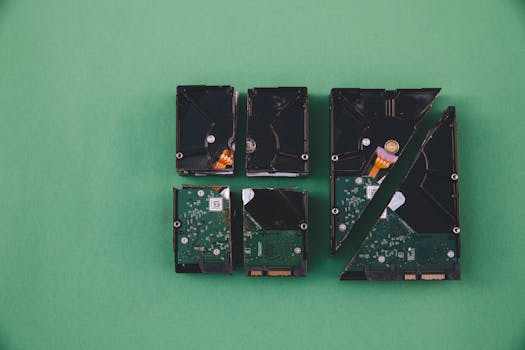
If you’ve ever tried to access an encrypted disk on your Mac and been met with an error message, a grayed-out drive, or a prompt requesting a password you can’t recall, you know how stressful this situation can be. FileVault disk encryption and other encryption tools offer robust security for your sensitive data, but they can also make troubleshooting access issues more challenging. Whether the disk in question is an internal drive, an external USB, or even a backup, losing access can feel like slamming a vault door on your own information.
Fortunately, there are systematic ways to regain access, diagnose the problem, and avoid data loss. In this comprehensive guide, we’ll explore what to do when you can’t access an encrypted disk on a Mac. We’ll cover the most common scenarios, the tools and utilities you can use, and key differences between various encryption methods and recovery strategies. By the end, you’ll be equipped with practical steps and a clearer understanding of how disk encryption works on macOS.
Understanding Mac Disk Encryption: FileVault and Beyond
Disk encryption on Mac typically relies on FileVault, Apple’s built-in solution that uses XTS-AES-128 encryption with a 256-bit key. When FileVault is enabled, your entire disk is encrypted, and only users with the right password or recovery key can unlock the drive at startup.
.png)
But FileVault isn’t the only way disks are encrypted on a Mac. You might also encounter:
- $1: Apple’s modern file system, APFS, allows you to encrypt individual partitions or external drives. - $1: When you encrypt your Time Machine disk, the backup cannot be accessed without the password. - $1: Software like VeraCrypt or Symantec Endpoint Encryption can protect disks in non-native formats.Each method has its own unlock process—and its own pitfalls. Common reasons you might lose access include:
- Forgotten password or misplaced recovery key - Corrupted disk header or partition table - Software bugs or failed macOS updates - Hardware issues, such as a failing drive or loose connectionKnowing which encryption method you’re facing is the first step to regaining access.
Diagnosing the Problem: Initial Steps When an Encrypted Disk Won’t Mount
When you can’t access an encrypted disk, the error message you receive is a valuable clue. Is the disk not showing up at all, appearing grayed out, or requesting a password you’re sure is correct?
1. $1: Open Disk Utility (Applications > Utilities > Disk Utility) and look for your disk in the sidebar. If it appears grayed out, it means the Mac recognizes the disk but it’s not mounted. Try selecting the disk and clicking "Mount"—you’ll be prompted for the password. 2. $1: Sometimes, the issue is with the USB port or cable rather than the disk itself. Try connecting the drive to a different port, or even another Mac, to rule out hardware issues. 3. $1: Listen for abnormal clicking sounds (a sign of mechanical failure) or check for visible damage to external drives. 4. $1: If you receive messages like “Couldn’t unlock the disk” or “The disk you inserted was not readable by this computer,” jot them down. These messages can help you search for specific solutions. 5. $1: For external hard drives, insufficient power can prevent mounting. Make sure the drive is properly powered, especially for 3.5” models that require an external adapter.According to a 2023 Backblaze report, approximately 1.4% of external hard drives fail annually, and connection issues account for about 12% of support tickets related to unreadable drives. This means that simple hardware checks can often resolve the issue before you need advanced troubleshooting.
Unlocking an Encrypted Disk: Passwords, Recovery Keys, and User Accounts
If your disk appears but requests a password, your next step depends on what information you have handy.
- $1: This is the password you set when encrypting the disk, which may be your Mac login password if FileVault is enabled. - $1: When you enabled FileVault or encrypted the disk, macOS offered the option to generate and save a recovery key. If you have this, you can use it to unlock the disk. - $1: On FileVault-enabled Macs, all users with permission can unlock the disk. Try logging in as another authorized user if available.Here’s a step-by-step comparison of unlocking methods:
| Unlock Method | When to Use | Success Rate | Common Issues |
|---|---|---|---|
| Password | When you know the disk or user password | ~95% (if password is known and correct) | Forgotten password, keyboard layout mismatches |
| Recovery Key | If password is forgotten but recovery key is saved | ~85% (recovery key must be correct) | Lost or mistyped recovery key |
| Other User Account | FileVault enabled with multiple authorized users | Varies (depends on user access) | Access limited to authorized users only |
If you’ve forgotten both the password and the recovery key, unfortunately, Apple cannot help you unlock the drive due to its zero-knowledge encryption design. This underscores the importance of securely storing your recovery key—preferably in a password manager or printed in a safe location.
Advanced Troubleshooting: Repairing and Recovering Data from Encrypted Disks
If entering the correct password or recovery key doesn’t work—or if the disk doesn’t appear in Disk Utility—more advanced steps are required.
1. $1: Select the disk or volume and click "First Aid." This will check the disk for errors and attempt to repair them. Note that First Aid can’t decrypt data but can fix minor file system issues that prevent mounting. 2. $1: The `diskutil` command in Terminal can sometimes force-mount or unlock disks not recognized by the GUI.For example, to list encrypted volumes: diskutil apfs list
To unlock: diskutil apfs unlockVolume /dev/diskXsY -passphrase [your_password]
Replace /dev/diskXsY with your actual disk identifier, which you can find using `diskutil list`.
3. $1: If the disk is physically healthy but won’t unlock due to file system corruption, specialized data recovery software such as Disk Drill, Data Rescue, or Stellar Data Recovery may help. However, these tools usually require the correct password or recovery key to access encrypted data. 4. $1: For physically damaged drives or when all software solutions fail, professional recovery services may be able to salvage your data. According to DriveSavers, their average recovery success rate for encrypted drives is around 70%, but you must provide the password or recovery key.Remember: If your data is highly sensitive or valuable, avoid repeated attempts that could further damage the drive or render more data unrecoverable. Seek professional help early if you suspect hardware failure.
Preventing Future Access Issues with Encrypted Disks
After regaining access or recovering your data, take steps to avoid future headaches:
- $1: Store it in at least two secure, separate locations. Consider using a password manager with built-in secure notes. - $1: Maintain unencrypted backups of non-sensitive files, and encrypted backups of sensitive data. Time Machine supports encrypted backup disks—just don’t forget the password. - $1: At least once a quarter, verify that you can unlock and access your encrypted backups. - $1: Outdated macOS versions can have bugs affecting disk encryption and mounting. Install updates after confirming compatibility with your hardware and apps. - $1: Use disk names and notes that remind you of which password or key is required, without revealing it outright.A 2022 survey by the Ponemon Institute found that 54% of data loss incidents on encrypted devices were caused by lost passwords or keys, rather than hardware failure or theft. Good password hygiene and backup discipline are your best insurance.
When to Seek Professional Help for Encrypted Disk Access
Some situations require expert intervention. Consider professional help if:
- The disk makes clicking or grinding noises (possible mechanical failure) - The disk doesn’t appear in Disk Utility or Terminal at all - You suspect water or physical damage - You need to recover data from a RAID or complex storage setupProfessional services can often recover data even from damaged or corrupted encrypted disks, provided you can supply the password or recovery key. Prices vary widely; expect costs from $300 to several thousand dollars depending on the severity and urgency.
Final Thoughts on Accessing Encrypted Disks on a Mac
Losing access to an encrypted disk on your Mac can be alarming, but the right approach can make all the difference. Start with simple hardware checks and password recovery attempts. If you’re still locked out, use Disk Utility, Terminal, or reputable recovery software. Don’t forget that prevention—through secure key management and regular backups—is your strongest defense against permanent data loss.
Apple’s encryption tools are designed for security above all else, meaning once the password and recovery key are lost, there is no backdoor. Treat your credentials with the importance they deserve, and you’ll minimize the risk of being locked out in the future.







