Efficiently Recovering Permanently Deleted Data on Mac
Losing important data on a Mac can be a stressful experience, especially if the data is permanently deleted. However, with the right tools and techniques, recovering this data is often possible. In this article, we will explore how to efficiently recover permanently deleted data on your Mac, ensuring you can regain access to your valuable information with minimal hassle.
Understanding Data Deletion on Mac
.png)
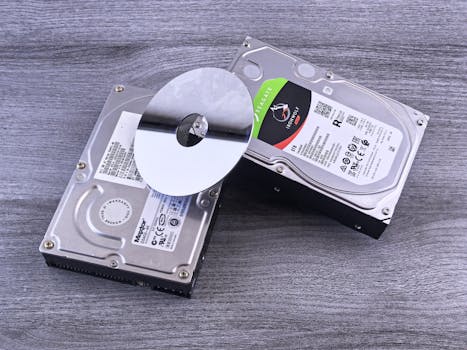
When you delete files on a Mac, they are typically moved to the Trash. These files are not actually removed from your hard drive until you empty the Trash. Once the Trash is emptied, the files are marked as deleted by the system, and the space they occupied is designated as available for new data. However, until new data overwrites the old data, it remains physically present on the drive, which is why recovery is possible.
Preparing for Data Recovery
Before attempting to recover any data, it's important to stop using the affected Mac immediately. This is crucial because any new files written to the hard drive can overwrite the deleted data, making recovery more difficult or even impossible.
Next, you should create a backup of your current data. This step is essential to avoid further data loss during the recovery process. Use an external drive or cloud storage to secure your existing data.
Choosing the Right Data Recovery Software
There are numerous data recovery tools available, but choosing the right one is key to successfully recovering your deleted files. Look for software that is compatible with macOS and supports the file system used on your Mac (typically APFS or HFS+). Some well-regarded data recovery programs include Disk Drill, Stellar Data Recovery, and EaseUS Data Recovery Wizard.
When selecting software, consider the following:
- Ease of use: The software should have a user-friendly interface.
- Supported file types: Ensure the software can recover the types of files you need.
- Preview option: This allows you to view files before recovering them, ensuring they are the correct ones and not corrupted.
- Reliability and reviews: Check user reviews and expert opinions to gauge the effectiveness of the software.
The Recovery Process
Once you have chosen your software, download and install it on a separate drive than the one where your data was lost. Running the software from a different drive reduces the risk of data overwriting.
Launch the software and follow these general steps:
- Select the drive: Choose the drive where the deleted files were stored.
- Scan the drive: Allow the software to scan the drive for recoverable data. This process can take some time, depending on the drive’s size and the software’s thoroughness.
- Preview and select files: Once the scan is complete, use the preview feature to check the files and select the ones you want to recover.
- Recover the files: Choose a recovery location that is different from the original location to avoid overwriting other recoverable files.
Tips for Successful Data Recovery
- Act quickly: The sooner you attempt to recover your deleted files, the better your chances of success.
- Avoid installing new software or downloading files: This can overwrite the deleted files you are trying to recover.
- Regular backups: Regularly backing up your data is the best way to prevent data loss. Consider using Time Machine, a built-in backup feature of macOS.
Conclusion
Recovering permanently deleted data on a Mac can be daunting, but with the right preparation and tools, it is often achievable. By understanding how deletion works on a Mac and using effective data recovery software, you can maximize your chances of getting your data back. Remember, the key to successful data recovery is acting quickly and carefully following the recovery steps.